
Teltonika Mobile Modes Explained: NAT vs Bridge vs Passthrough
Stop! Before you switch to Bridge or Passthrough mode, read this first.
One of the most common mistakes we see with Teltonika router configuration is people switching to Bridge or Passthrough mode thinking it will solve their remote access problems. In most cases, it won’t – because they’re using a standard consumer SIM that’s behind CGNAT.
This guide explains what each mode actually does, when you need it, and crucially, when it’s completely irrelevant to your situation.
The Question You Need to Answer First
Before configuring mobile modes, you need to understand what type of mobile connection you have. The mode you choose only matters if you have the right type of SIM.
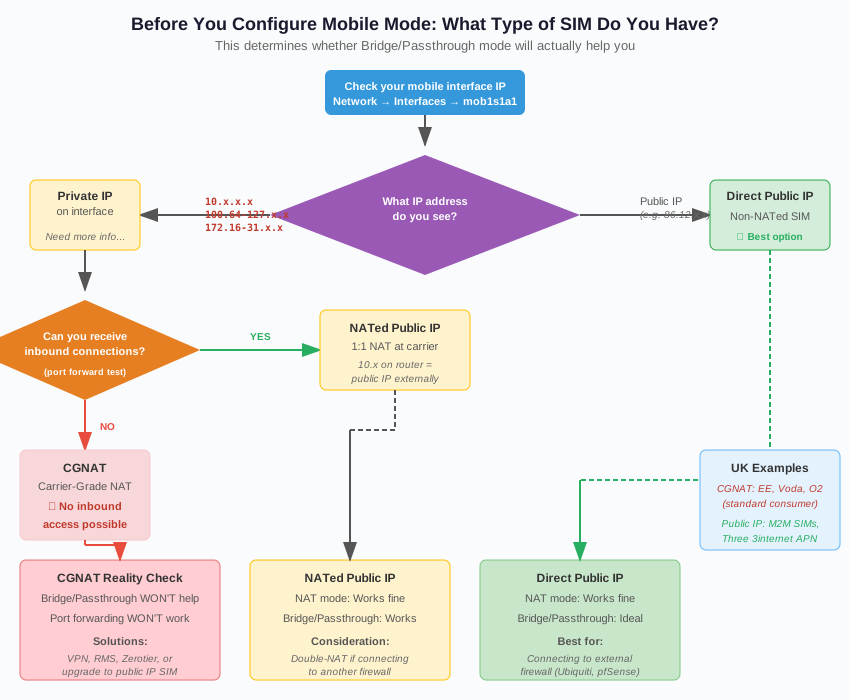
How to Check Your SIM Type
- Go to Network → Interfaces → mob1s1a1 (or your mobile interface)
- Look at the IP address assigned to the interface
If you see:
100.64.x.xto100.127.x.x→ CGNAT (Carrier-Grade NAT)10.x.x.x→ Could be CGNAT or NATed Public IP172.16.x.xto172.31.x.x→ Likely CGNAT- A real public IP (e.g.,
86.12.45.100) → Direct Public IP
The CGNAT Reality Check
If you’re using a standard consumer SIM from EE, Vodafone, O2, or most other UK networks, you’re almost certainly behind CGNAT. This means:
- You cannot receive inbound connections, full stop
- Port forwarding will not work, regardless of mode
- Bridge/Passthrough modes will not help you
- Dynamic DNS is useless (you’re sharing an IP with hundreds of other users)
The only solutions for CGNAT are:
- Outbound VPN connection (WireGuard, OpenVPN to a server you control)
- Teltonika RMS (uses outbound connection)
- ZeroTier, Tailscale, or similar overlay networks
- Upgrade to a public IP SIM (M2M/IoT SIM with static IP)
If you’re on CGNAT, stay on NAT mode and use one of the VPN-based solutions above. The rest of this article is for users with public IP SIMs.
Understanding the Three Mobile Modes
For users with public IP SIMs, here’s what each mode actually does:
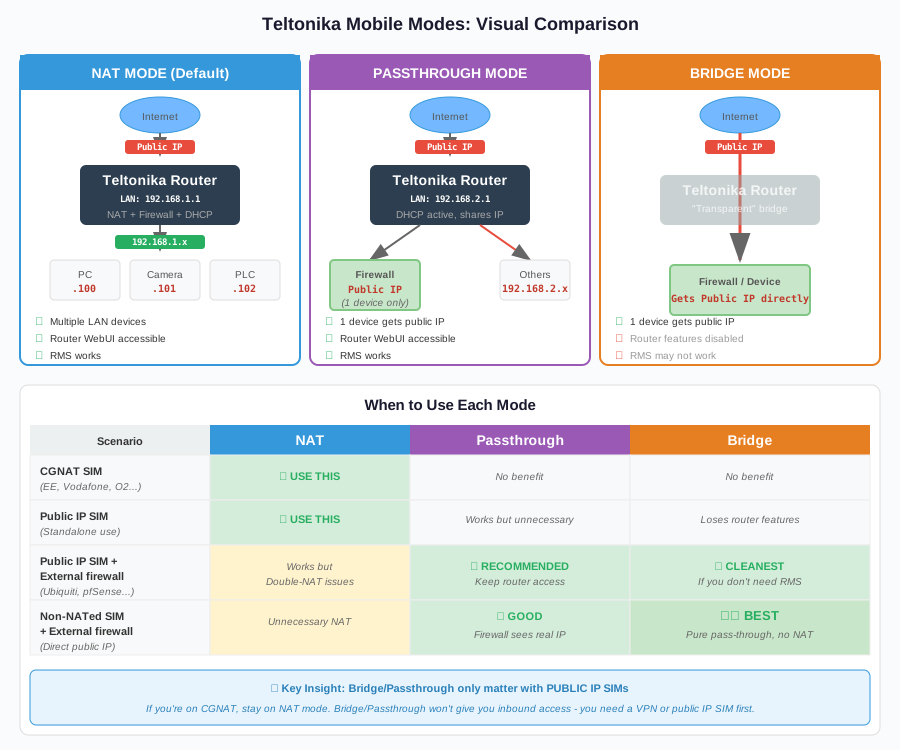
NAT Mode (Default)
This is the standard configuration and works exactly like any home router:
- Router performs Network Address Translation
- Multiple LAN devices can share the connection
- Router has full functionality (firewall, VPN, RMS, DHCP)
- You can port forward to LAN devices
Use NAT mode when:
- You’re on a CGNAT SIM (it’s your only option anyway)
- The Teltonika is your only router/firewall
- You need all router features (VPN server, SMS, etc.)
- You have multiple devices connecting via LAN/WiFi
Passthrough Mode
Passthrough shares the carrier-assigned IP address with a single designated LAN device, while keeping the router functional:
- One device receives the public IP directly
- Other LAN devices get private IPs and can still access the internet
- Router WebUI remains accessible (via its LAN IP)
- RMS continues to work
- Router maintains DHCP server for other devices
Use Passthrough when:
- You have a public IP SIM
- You’re connecting to an external firewall (Ubiquiti, pfSense, etc.)
- You still need access to the Teltonika router for management
- You want to avoid double-NAT without losing router access
Bridge Mode
Bridge mode makes the router act as a transparent pass-through, forwarding the carrier’s DHCP lease directly to the connected device:
- Connected device gets the carrier IP directly
- Router becomes essentially invisible to data traffic
- Most router features are disabled (firewall, NAT, VPN)
- RMS typically won’t work (router has no internet access)
- Only one device can connect (gets the WAN IP)
Use Bridge mode when:
- You have a direct public IP SIM (non-NATed)
- You’re connecting to a capable firewall that will handle everything
- You don’t need Teltonika RMS or router-level features
- You want the cleanest possible IP assignment
The Double-NAT Problem
The main reason to use Passthrough or Bridge mode is to avoid double-NAT when connecting to an external firewall.
Why Double-NAT is a Problem
When you connect a Teltonika in NAT mode to another firewall (like a Ubiquiti UDM), you get:
- NAT #1: Teltonika translates your LAN to its WAN IP
- NAT #2: Your external firewall translates again to its WAN IP
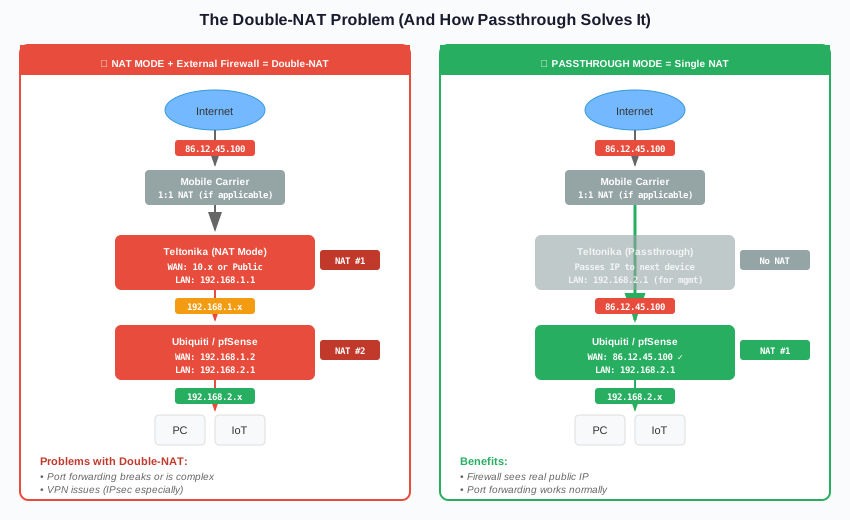
This causes issues with:
- Port forwarding (you need to forward on both devices)
- VPNs (especially IPsec, which doesn’t like NAT)
- UPnP and automatic port mapping
- Some gaming and VoIP applications
- Your firewall not seeing the real public IP
The Solution
Using Passthrough or Bridge mode eliminates the first NAT layer, so your external firewall receives the public IP directly and handles all NAT duties itself.
NATed vs Non-NATed Public IP SIMs
Not all “public IP” SIMs are equal. There are two types:
NATed Public IP (1:1 NAT)
- Your router sees a private IP (e.g.,
10.45.67.89) - The carrier performs 1:1 NAT to map your public IP
- Inbound connections work (carrier forwards them)
- This works fine with Passthrough mode
- The downstream device will see the private IP, but traffic routes correctly
Non-NATed / Direct Public IP
- Your router sees the actual public IP (e.g.,
86.12.45.100) - No NAT at the carrier level
- This is the cleanest option for Bridge mode
- Your downstream firewall sees the real public IP on its WAN interface
- Preferred for IPsec VPNs and applications that need to know the real IP
When connecting to an external firewall, non-NATed is preferred because the firewall can see and use the actual public IP address. Some applications and VPN configurations specifically need this.
Feature Comparison Table
Before switching modes, understand what you’re giving up:
Key Losses in Bridge Mode
Bridge mode disables most router features because the router no longer has internet access itself:
- RMS: Won’t connect (router is offline to the internet)
- Package Manager: Can’t download packages
- NTP: Time sync may fail (common complaint in forums)
- VPN on router: Disabled
- SMS features: May still work (uses mobile signalling, not data)
- Firewall: Disabled (your downstream device handles this)
Passthrough: Best of Both Worlds
Passthrough is often the better choice because you keep router functionality while still passing the IP through:
- Router maintains its own internet access (for RMS, NTP, etc.)
- One device gets the public IP
- Other devices can still use the router normally
- WebUI accessible via the router’s LAN IP
Configuration Guide
Setting Up Passthrough Mode
- Go to Network → Interfaces → mob1s1a1 (or your mobile interface)
- Click Edit
- Under Protocol, select Passthrough
- Configure the target:
- MAC Address Passthrough: Specify the MAC of the device that should receive the IP
- Or use DHCP to assign to the first device that requests
- Important: Set a static IP for the router’s LAN interface so you can still access it
- Save & Apply
Setting Up Bridge Mode
- Go to Network → WAN (or mobile interface settings)
- Change Mode from NAT to Bridge
- Note the warning: “Using Bridge mode will disable most of the device capabilities”
- Configure static IP access to the router’s WebUI if needed
- Save & Apply
Accessing the Router After Mode Change
In both Passthrough and Bridge modes, the router’s WebUI won’t be accessible via its WAN IP. You’ll need to:
- Set a static IP on the router’s LAN (e.g.,
192.168.2.1) - Access it via that IP from a device on the same network
- Or configure a separate management VLAN
Troubleshooting Common Issues
“I switched to Bridge/Passthrough but still can’t get inbound connections”
You’re probably on CGNAT. Check your IP address – if it starts with 100.64-127, 10., or 172.16-31, you’re behind carrier NAT and these modes won’t help.
“Bridge mode drops connection frequently”
This is a known issue on some firmware versions, especially with certain carriers. Try:
- Updating to latest firmware
- Using Passthrough instead of Bridge
- Some carriers don’t properly support Bridge mode at all
“Speed is slower in Bridge/Passthrough mode”
Some users report reduced throughput. This has been acknowledged by Teltonika on certain models. If speed is critical, test both modes and compare.
“I can’t access the router’s WebUI anymore”
You need to access via the static LAN IP, not the mobile IP. Make sure you’ve configured a static IP and are connecting from the right network segment.
“RMS shows device offline in Bridge mode”
Expected behaviour. In Bridge mode, the router doesn’t have internet access, so it can’t connect to RMS. Use Passthrough instead if you need RMS.
Quick Reference: Which Mode Should You Use?
| Your Situation | Recommended Mode |
|---|---|
| Standard consumer SIM (CGNAT) | NAT (only option) |
| Public IP SIM, Teltonika is only router | NAT |
| Public IP SIM + external firewall, need RMS | Passthrough |
| Direct public IP + external firewall, don’t need RMS | Bridge |
| NATed public IP + external firewall | Passthrough |
| Uncertain what type of SIM you have | NAT (safest default) |
Summary
The key points to remember:
- Check your SIM type first – Bridge/Passthrough are irrelevant for CGNAT SIMs
- NAT mode is the safe default – Full functionality, works with any SIM type
- Passthrough is usually better than Bridge – You keep router features while passing the IP
- Bridge mode has significant trade-offs – Only use if you specifically need pure pass-through and don’t need RMS
- Non-NATed public IP SIMs are ideal for connecting to external firewalls
Don’t fall into the trap of thinking Bridge mode will magically give you remote access – it won’t. If you’re on CGNAT, you need a VPN-based solution or a public IP SIM upgrade.
Need a public IP SIM for your deployment? Contact us for M2M SIM solutions with static public IP addresses, available with both NATed and non-NATed options depending on your requirements.
Related articles:
- Teltonika Firewall Zones Explained: A Visual Guide
- Why Your Teltonika Failover Isn’t Working
- Understanding CGNAT and Your Options for Remote Access